
What are Digital Borders?
A Digital Border can be added to your glass print to give it the look of a picture mat without adding any extra materials. The border will be printed with ink directly on the glass, ranging from ½" thick on our smallest size to 2 ¾" on our largest size, and symmetrical on all four sides.
They can be applied with or without our Frames, depending on the look you have in mind. Digital Borders help add that elevated, gallery-style feel to your prints without changing the sleek finish you love!
Option 1: Add a Digital Border to Your Frameless Print
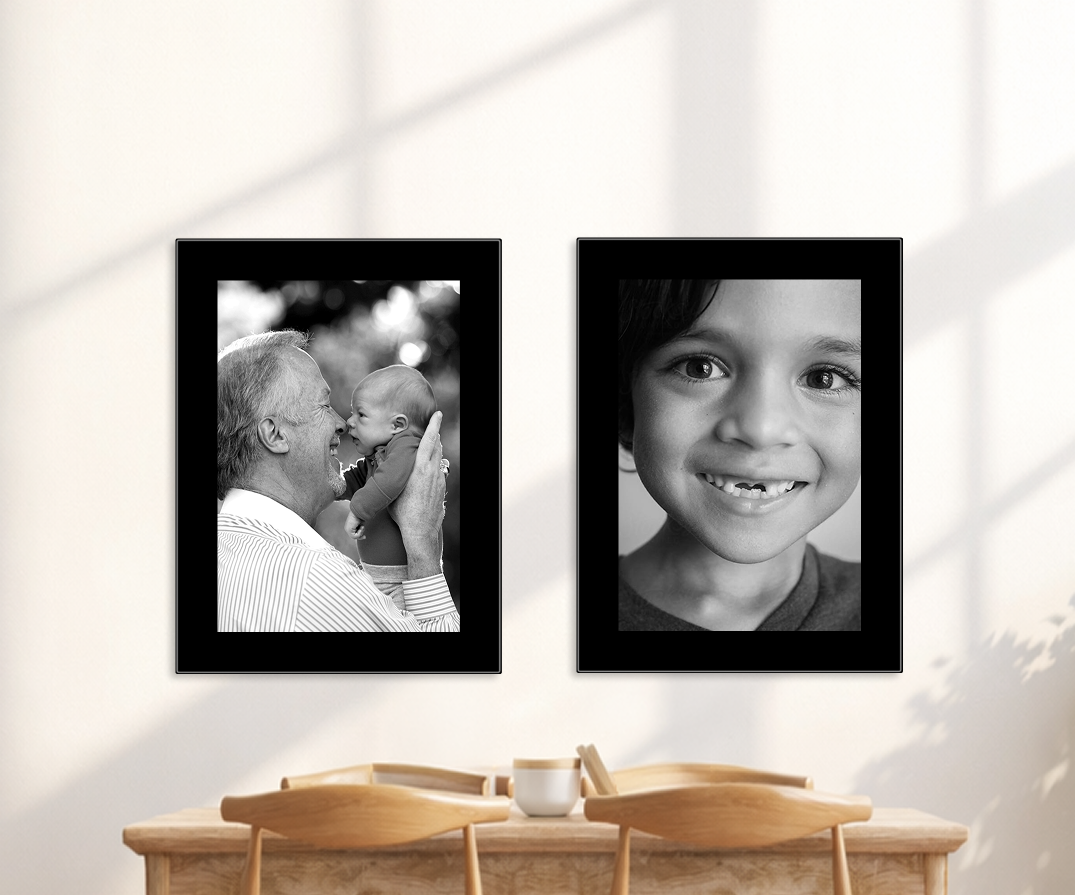
If you love the clean, modern style of our frameless prints, a Digital Border is an easy way to add a little extra polish to your photos.
The border creates a subtle “matted” effect around your image, giving it room to breathe without adding any extra bulk or hardware. Your print still hangs flush against the wall with our signature lightweight mount, so it keeps the sleek, contemporary vibe. This is a great choice if you want a more gallery-inspired look or just want a cohesive feel across multiple prints.
Option 2: Add a Frame for a Classic Mat + Frame Look
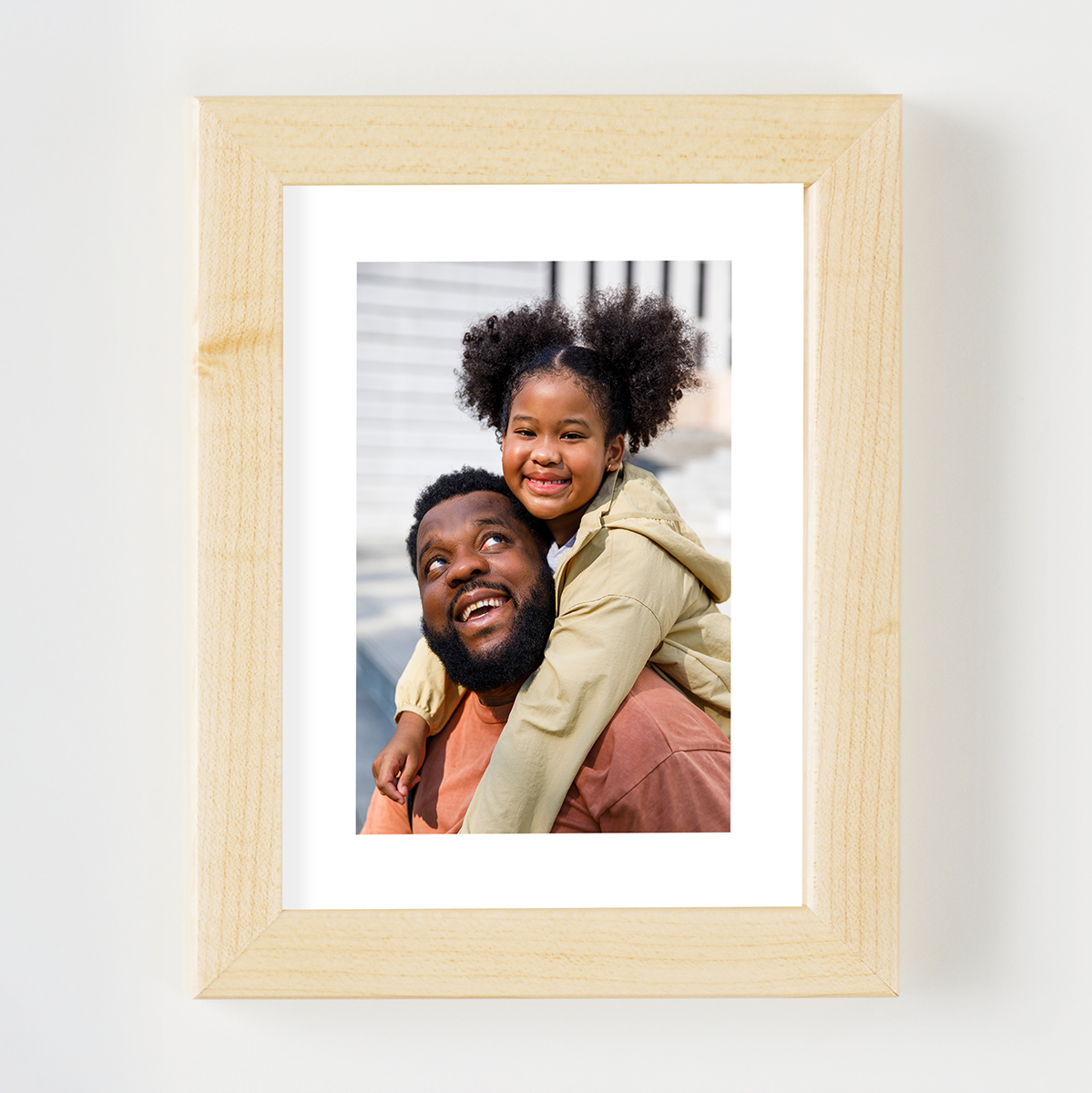
If you prefer a more traditional framing situation, you can pair a Digital Border with our wood Frames. The border acts like a built-in mat, while the frame surrounds the whole piece, giving you that timeless “photo + mat + frame” aesthetic.
This approach works especially well for family portraits, formal photography, or gallery walls that mix modern and traditional elements. You get the classic feel of a framed, matted print, but with all the benefits of glass.
How to order a Digital Border with your print?
-
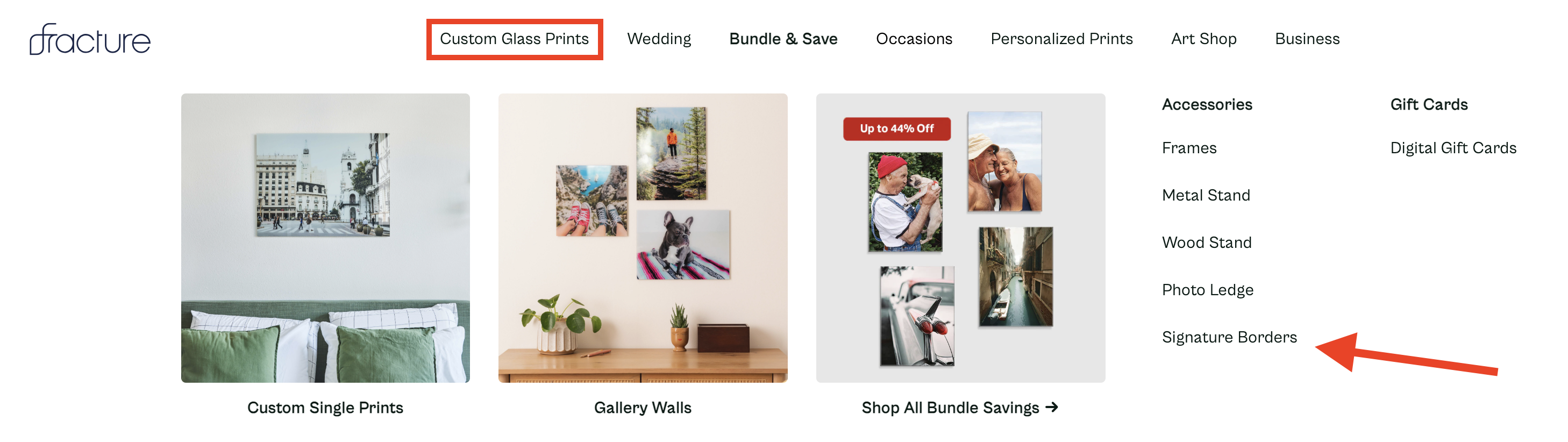
Use the Custom Glass Prints option at the top of our site, and then under the "Accessories" menu, navigate to our Signature Borders landing page:
-
Select the border color that you'd prefer! We have 25+ different colors to choose from.
-
Click on the Upload Your Photo button to choose an image from where it's saved on your device. Select the print size and shape that you want to purchase.
-
Our site will display a preview of how your photo will print onto the glass. Since the border takes up space on the glass, the visible photo area is reduced slightly. You can click on the Edit Photo button to adjust the cropped area.
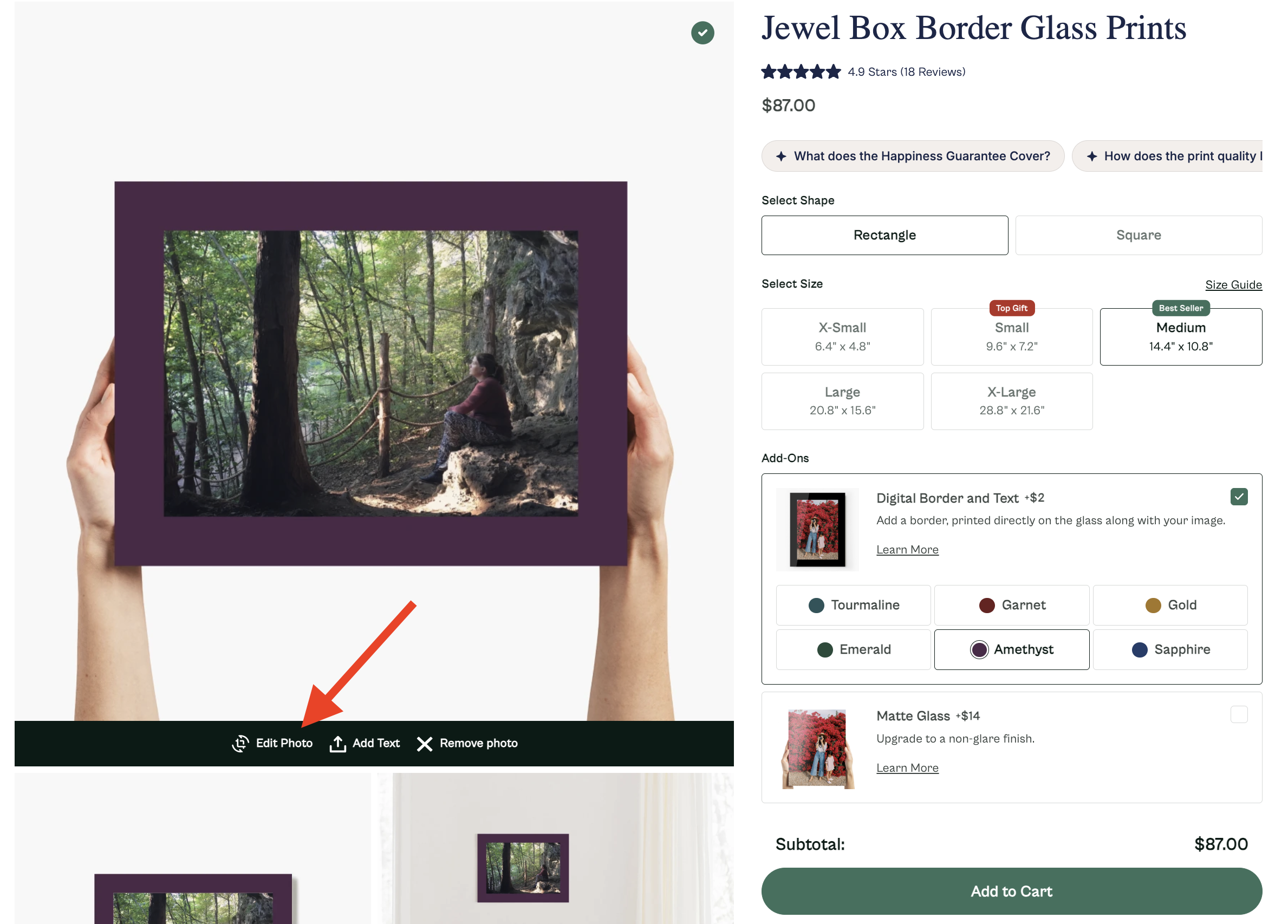
Check out this helpful guide with more info about using our Editor to crop.
-
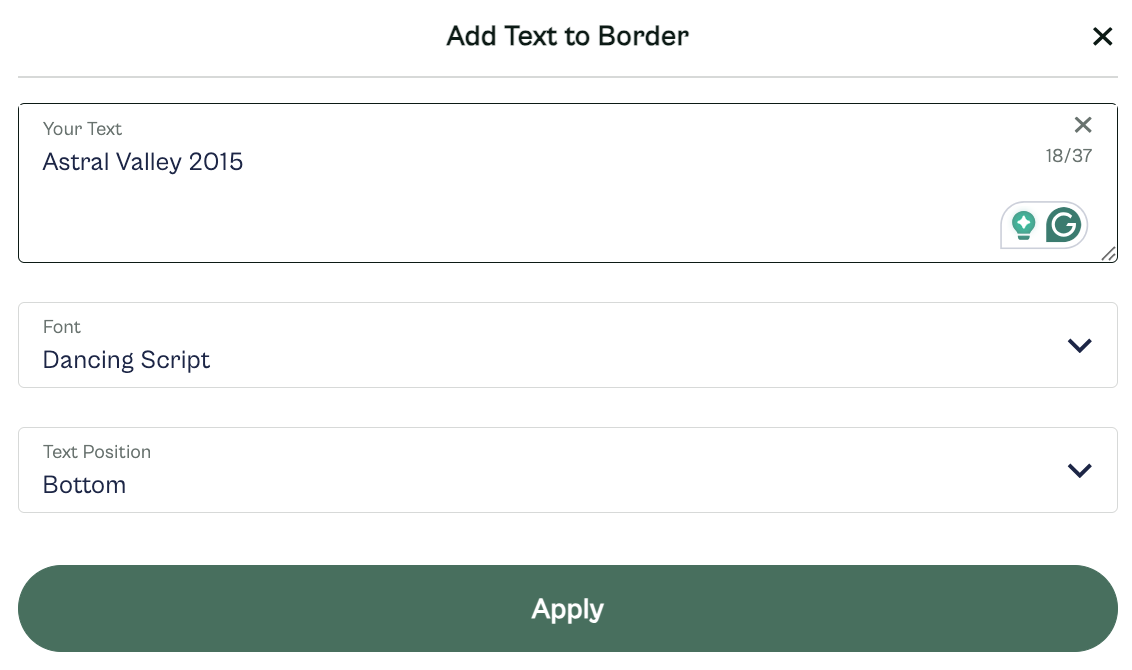
You can also add text to a Digital Borders! If you'd like to include a caption or date on your print, click on the Add Text button (right next to the Edit Photo button), and you'll see a pop-up window. Enter your message, select from two different fonts, and choose the top or bottom edge for display.
-
Click the green Apply button to save your text, and the preview of your print will update to include that message.
-
Once you've finalized the cropping and/or text for your print, click the Add to Cart button.
-
If you wish to purchase a Frame with your print, go to the Frames page of our site to add it to your Cart as an individual item. Our print sizes and frame sizes match, so if you're ordering a Medium Rectangle print, then you need a Medium Rectangle frame to match it.
Whether you want modern and minimal, or classic and framed, Digital Borders give you the flexibility to style your photo exactly how you imagine it.